
How to use MixClap: your mix in 4 steps
The step-by-step MixClap tutorial: import and order your songs, trim them, pick the transitions, then listen to and download your mix.
MixClap joins your songs into a single audio file, right in your browser: no account, nothing to install, and your files never leave your device. This guide follows the studio’s 4 steps in the order you will see them on screen. Allow 5 to 10 minutes for a first mix.
Before you start
- Your songs as audio files: MP3, WAV, M4A, FLAC, OGG, OPUS, or an MP4 video (only the sound is kept). Up to 50 files, 200 MB each.
- A computer, tablet or phone with an up-to-date browser.
- No account to create: your project is saved as you go in this browser (Saved locally, at the top of the screen).
Step 1 · Import and order your songs
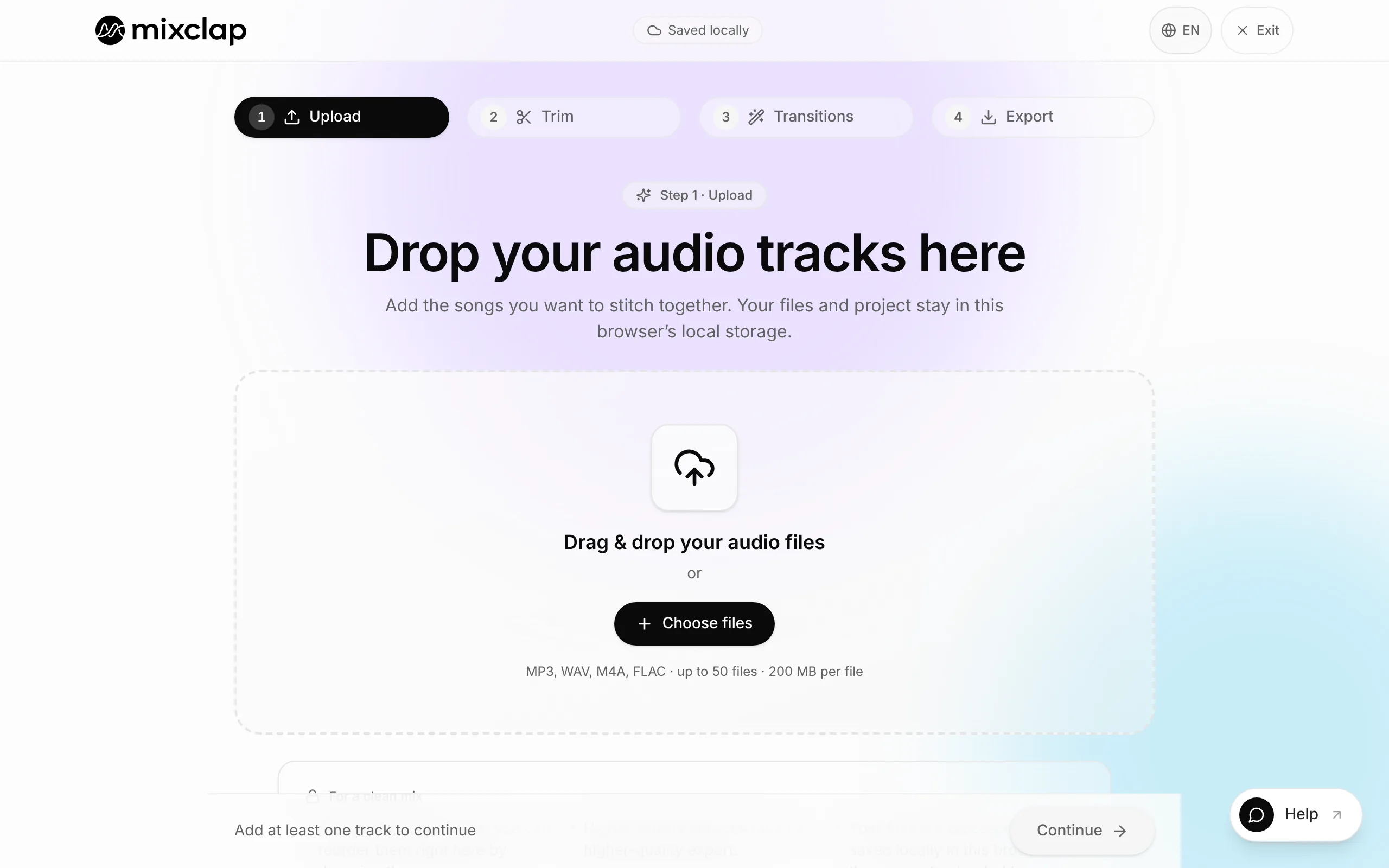
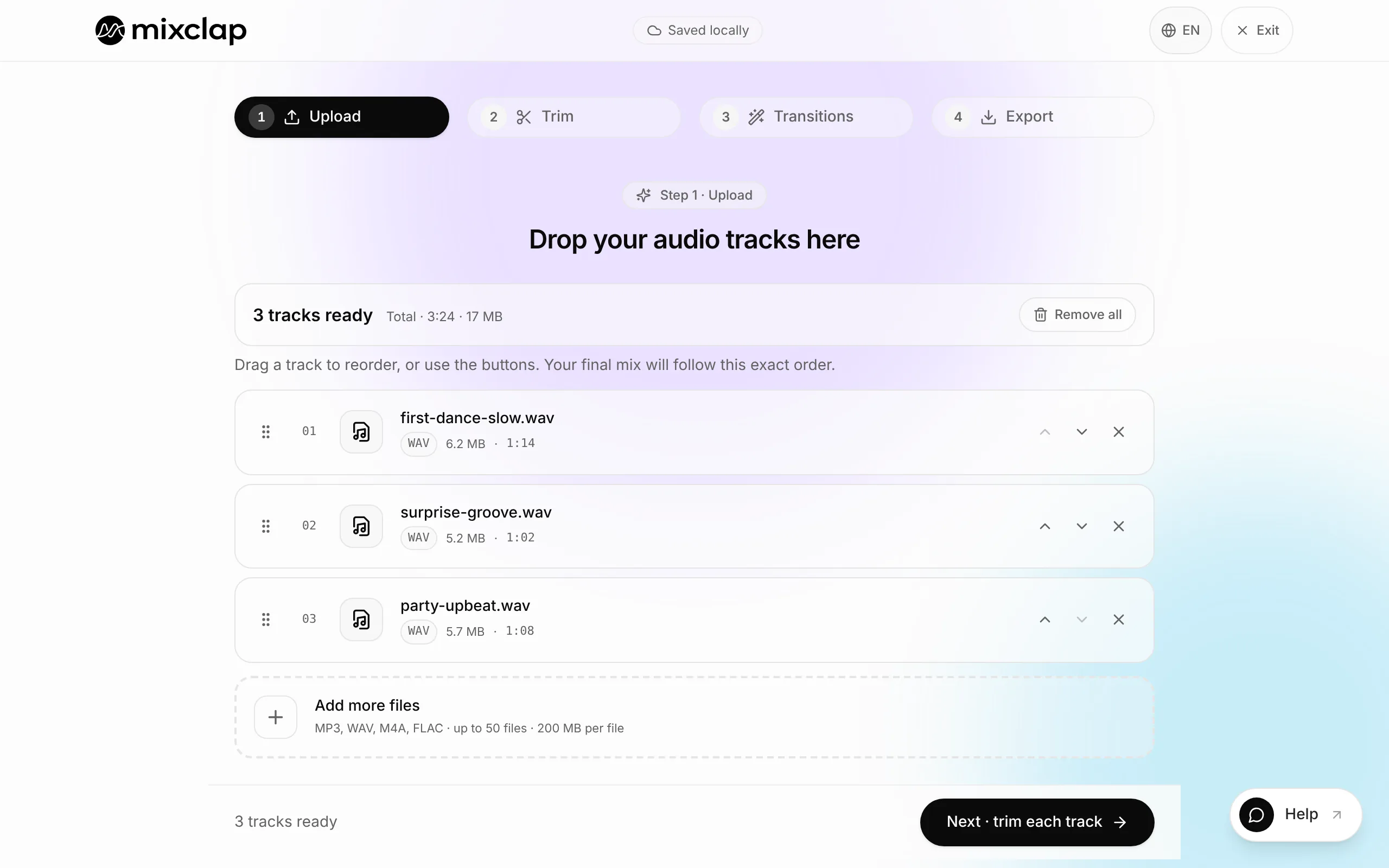
Click Choose files or drag your files into the box. Each song shows up in a list, with its length.
- Put them in mix order: drag a row by the handle on its left, or use the up and down arrows. The mix follows this exact order.
- On each row, the play button lets you check the song, the pencil renames it and the cross removes it.
- Missing one? Add more files, below the list.
When everything is in place, click Next · trim each track.
Step 2 · Trim the start and end
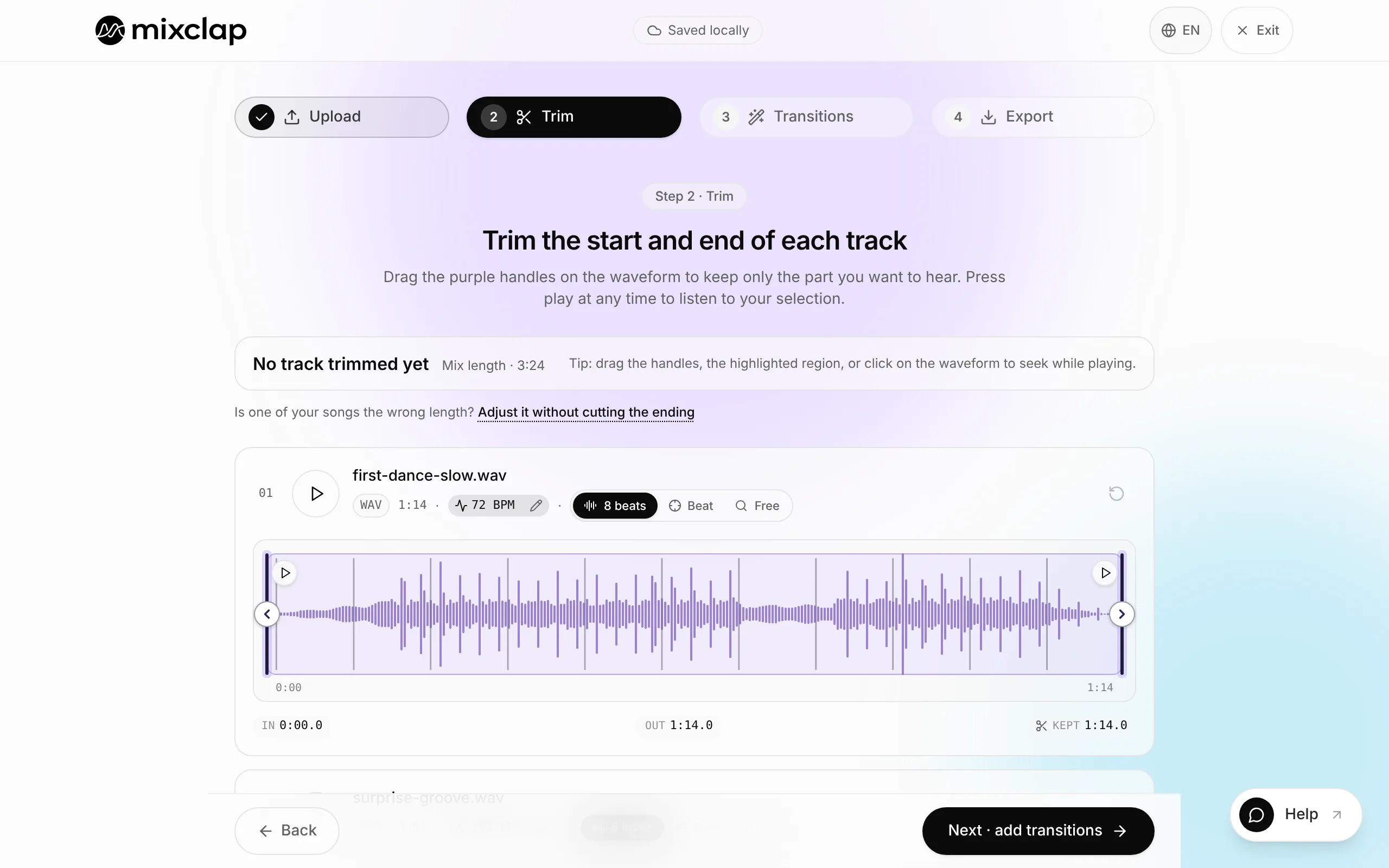
Each song is shown as a waveform. The purple area is what will be heard in the mix.
- Drag the purple handles to set the start and the end. The play button plays your selection.
- Nothing to cut? Just move on: the song is kept whole.
- The tempo (BPM) and loudness of each song are measured automatically, and volumes are evened out for you. There is nothing to set.
- A song has to fit an exact length, for a routine for instance? Click Adjust it without cutting the ending, just above the songs.
Then click Next · add transitions.
Step 3 · Pick the transitions
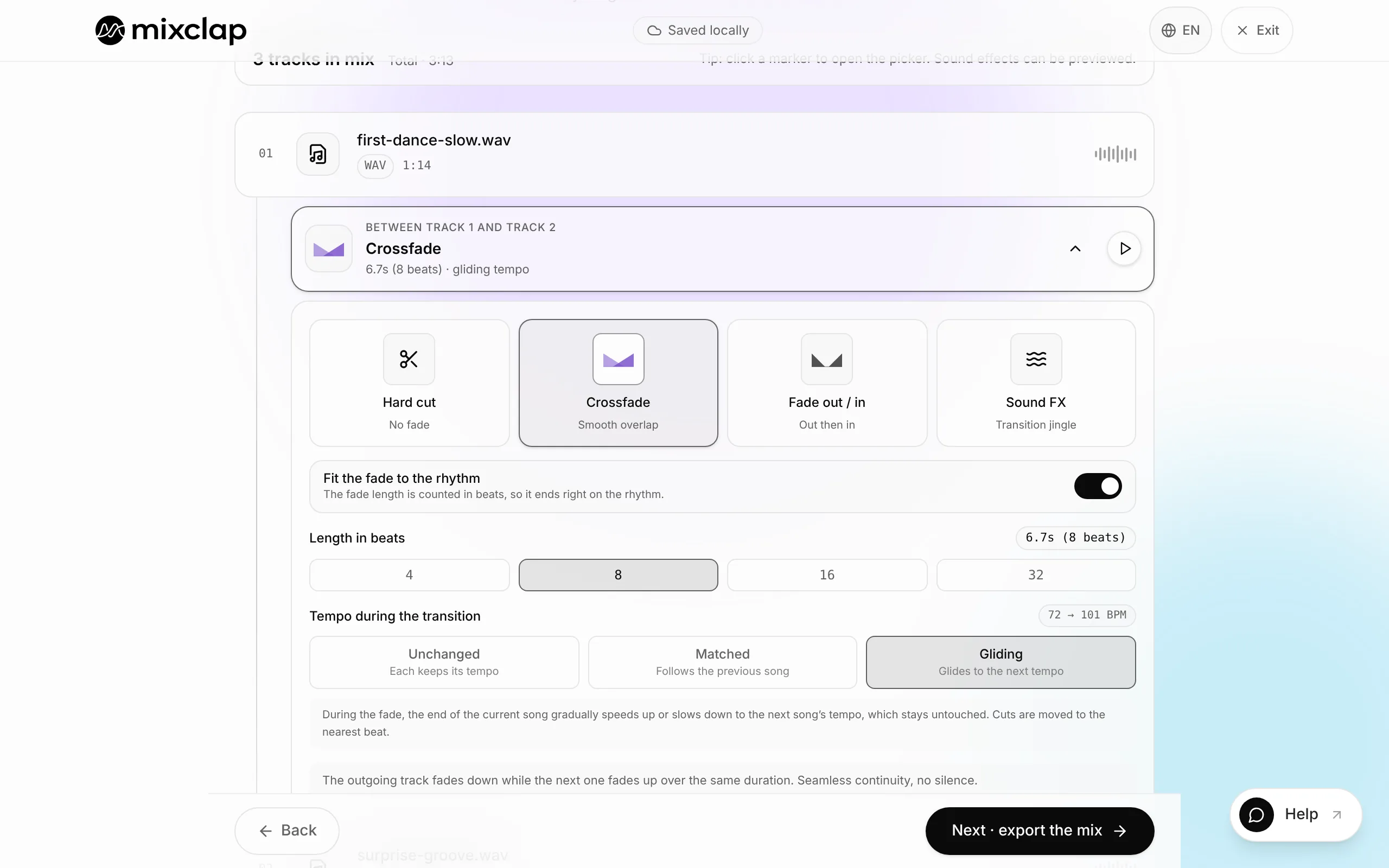
Between two songs, a marker shows the transition. It is a Crossfade by default, and most mixes can stay that way. Click a marker to pick another one:
- Crossfade: the next song rises while the first one fades away. The most natural choice.
- Hard cut: the next song starts straight away, with no fade.
- Fade out / in: the first song fades to silence, then the next one comes in gently.
- Sound FX: a sound effect (vinyl scratch, horn…) marks the change.
- Pause: a few seconds of silence, for instance between two acts of a show.
The Preview button plays that transition on its own. The Fit the fade to the rhythm option, on by default, fits the fade length to the beat: keep it if you are unsure. At the top of the list, Before the first song adds silence at the very start, time to get in place. Then click Next · export the mix.
Step 4 · Listen and download
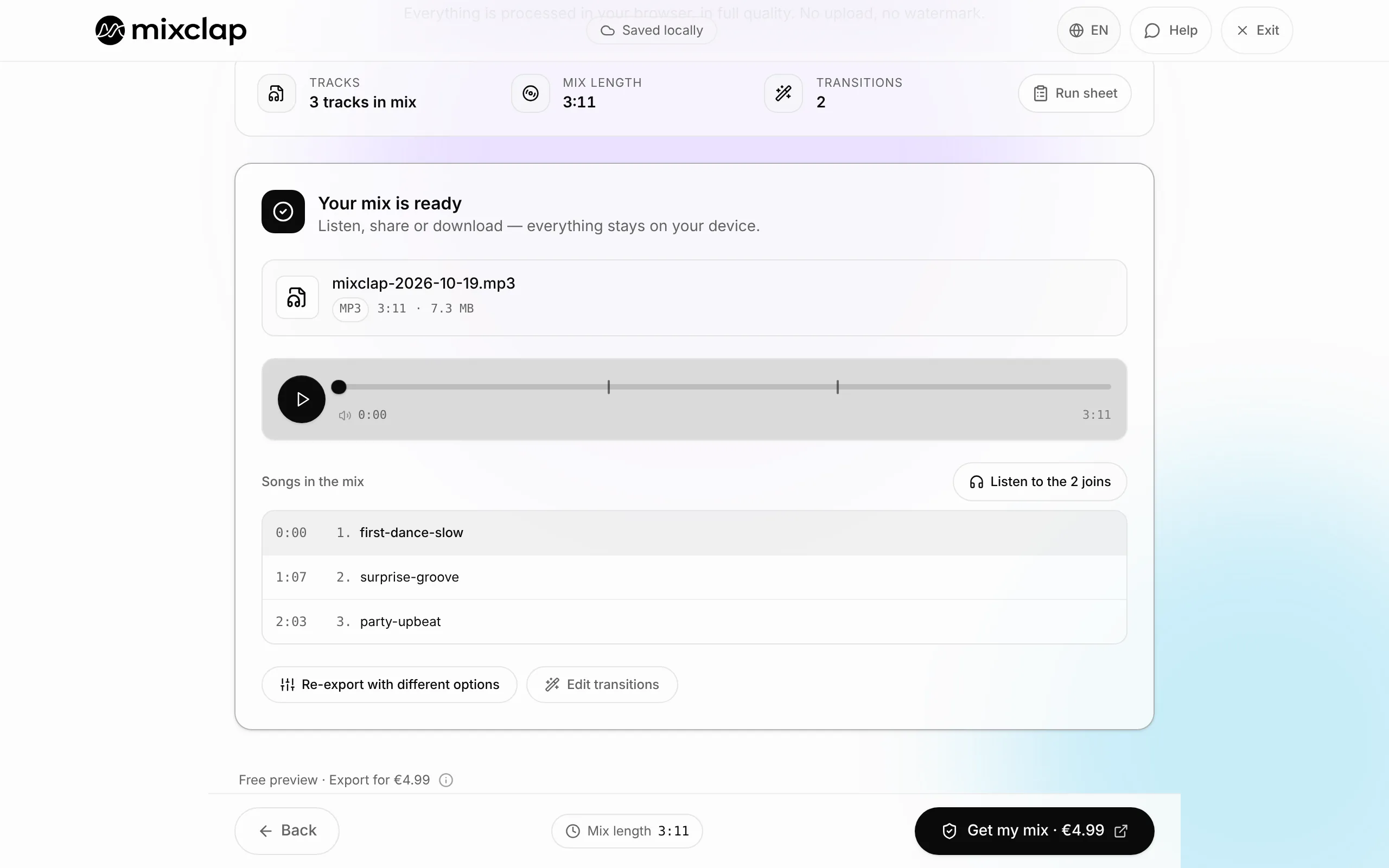
As soon as you reach this step, MixClap builds the mix on its own, in your browser. A few seconds later it is ready: listen to the whole thing, for free.
- For a quick check, one button plays only the joins between songs.
- Something to fix? Click Edit transitions or go back to an earlier step: your settings are kept.
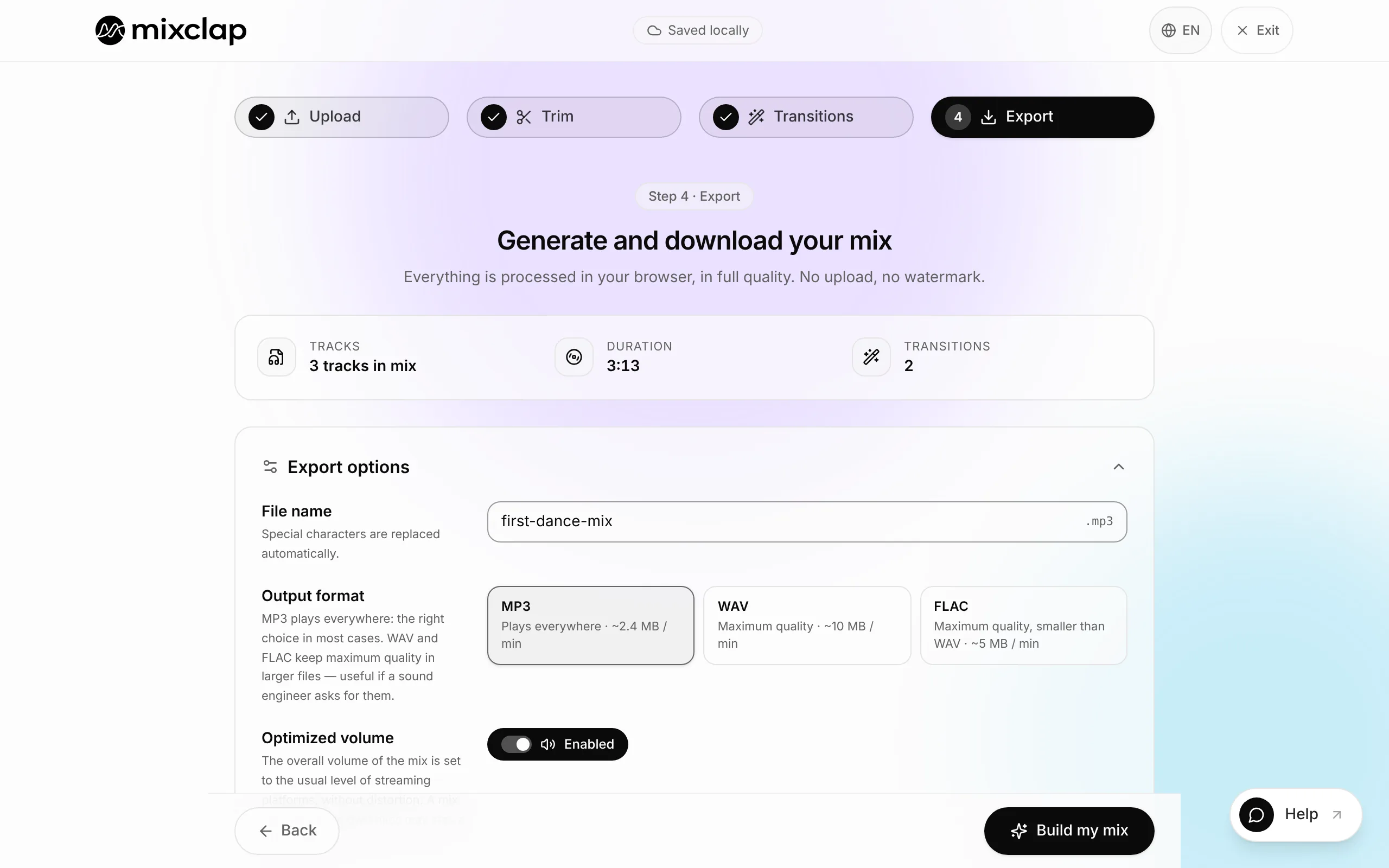
- Re-export with different options opens the options: format (MP3 plays everywhere; WAV or FLAC if a sound engineer asks for them), optimized volume, fade at the start and end, file name.
- Run sheet lists the start time of every song, to print or send to whoever runs the sound.
- To get the file, click Get my mix · €4.99: a one-time payment through Stripe, no subscription. You can then fine-tune this mix and export it again for free; adding, removing or replacing a song counts as a new mix.
The file is saved on your device. All your projects stay available in My mixes.
Stuck? Write to us
The Help button is always there: top right in the studio, bottom right on the rest of the site. Say what is blocking you, even in one sentence: the person who built MixClap answers.
Going further
Once you have the basics, these guides help you polish the result: