
The short answer
In MixClap, add your songs with Choose files, put them in order, keep the part you want from each one, pick a transition at every join, then listen to the whole mix. It all runs in your browser, with no software and no account, and you download a single MP3, WAV or FLAC file with Get my mix (€4.99, one-time payment). Allow about ten minutes for three or four songs.
- Time
- About ten minutes for 3 or 4 songs
- You need
- Your songs as files: MP3, WAV, M4A, FLAC, OGG, OPUS or an MP4 video (only the sound is kept), up to 50 files of 200 MB
- Device
- A computer, tablet or recent phone with an up-to-date browser
- Price
- Editing and listening are free, download €4.99, no subscription
- Your files
- Read and edited in your browser; a private copy is kept for 30 days at most
Step by step in MixClap
The steps follow the order of the studio’s screens. Names in bold are the button labels.
- 1
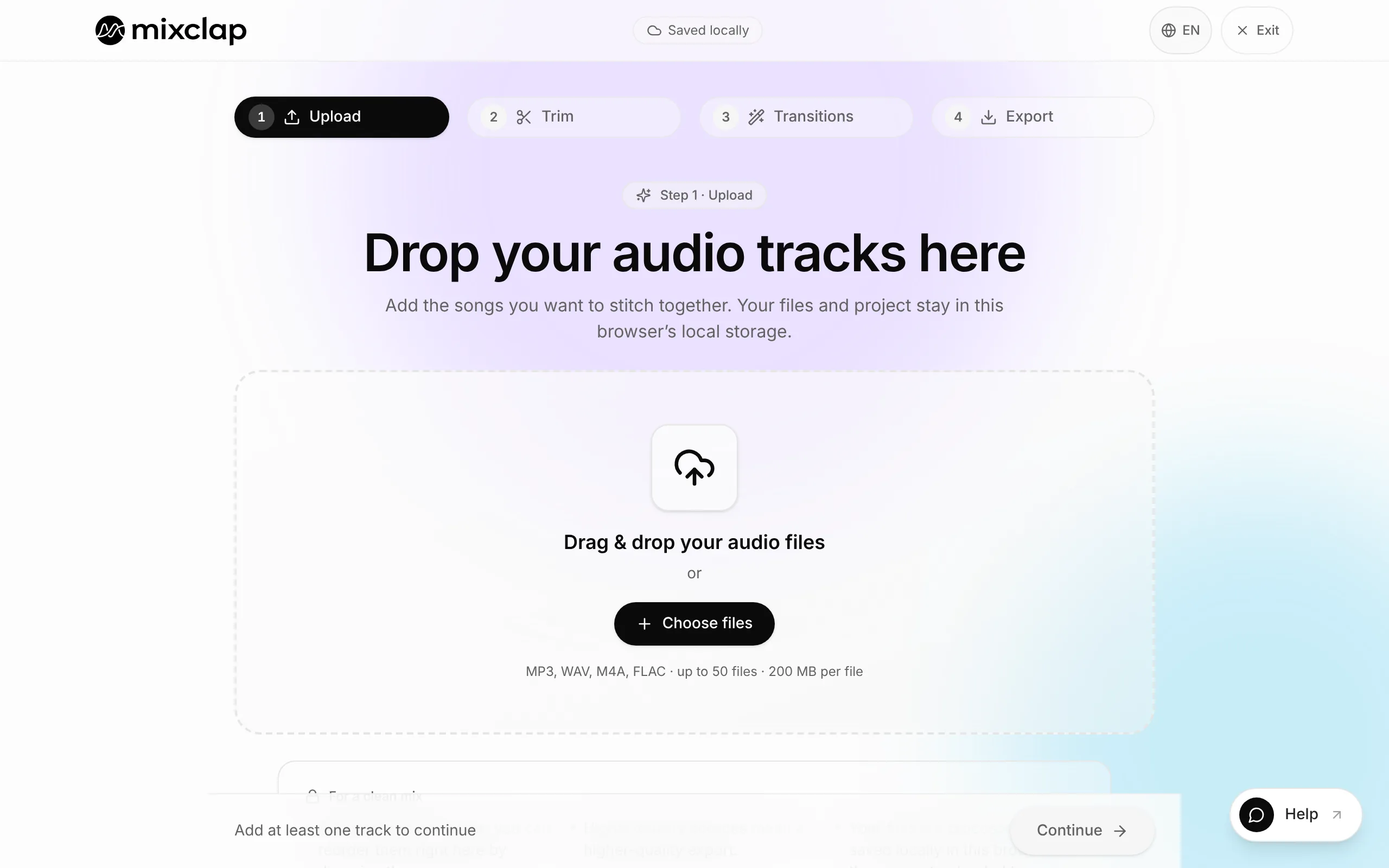
Step 1. Add your songs
Open the studio, click Choose files or drag your files into the box. Each song shows up in a list with its length. Missing one? Add more files, below the list.
- 2
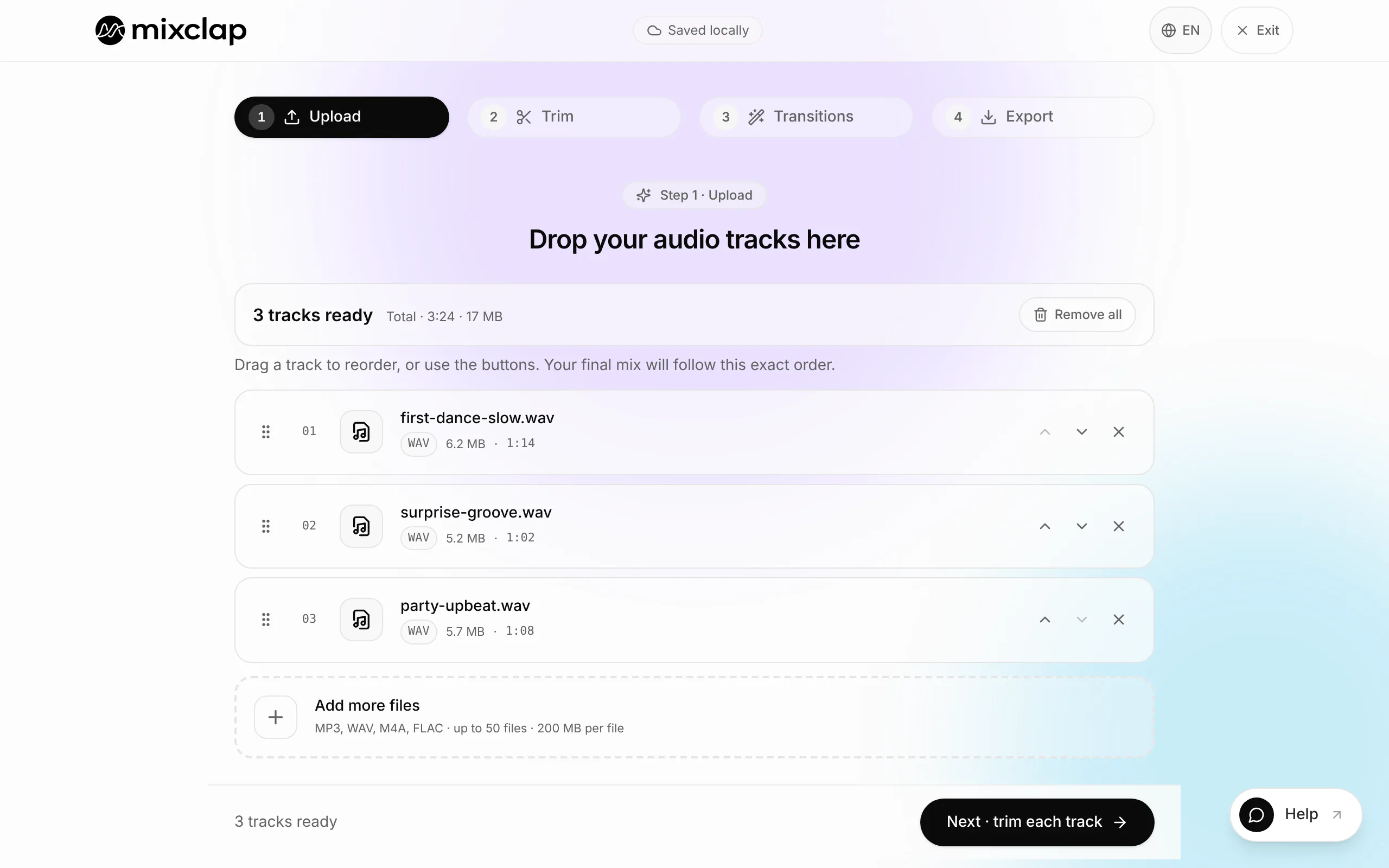
Step 2. Put them in order
Drag each row by the handle on its left, or use the arrows. The order of the list is the order of the mix. Then click Next · trim each track.
- 3
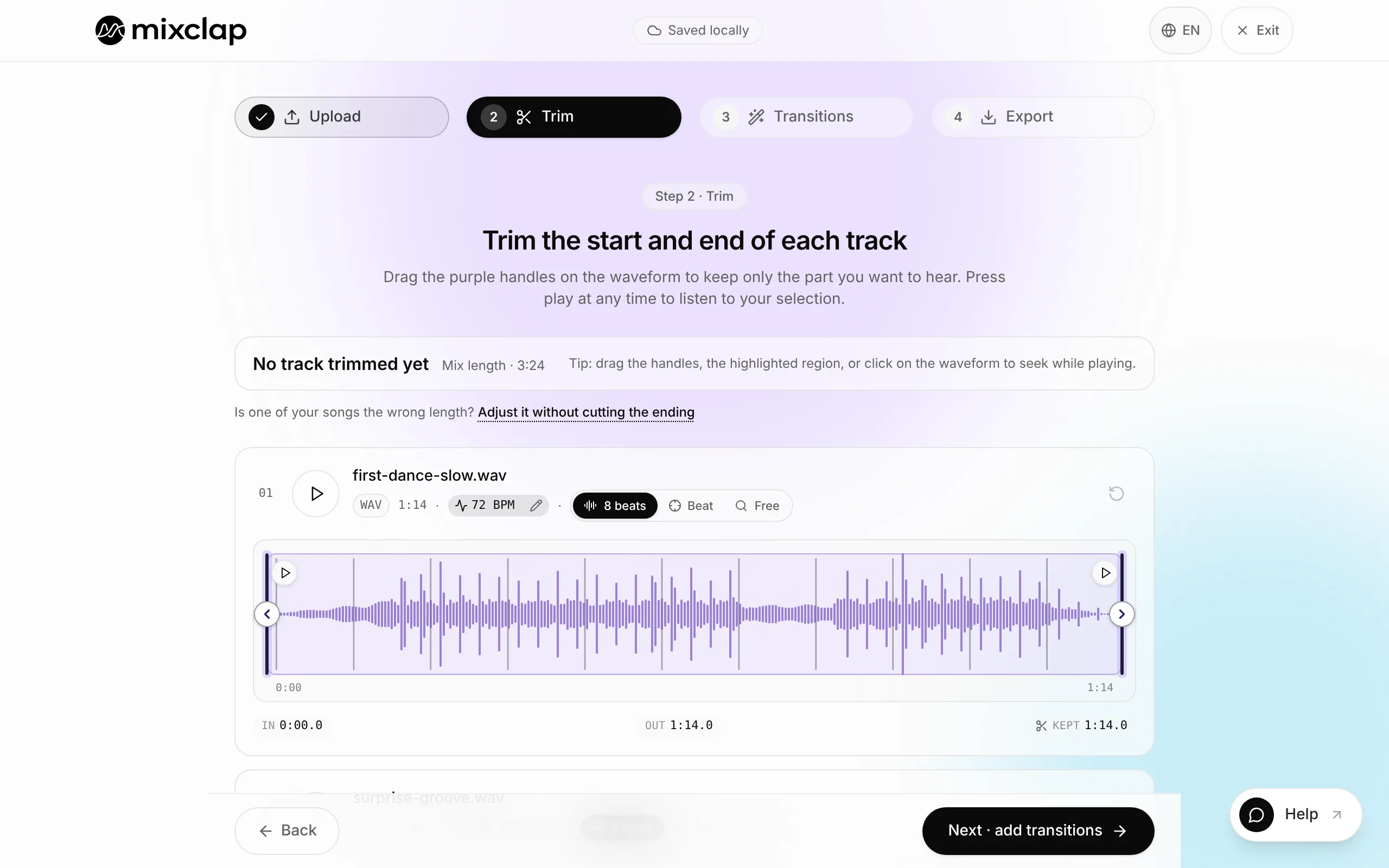
Step 3. Keep the right part of each song
Drag the purple start and end handles: the purple area is what will be heard. Nothing to cut? Move on, the song is kept whole.
- Each song’s tempo is detected. With the “1” of an eight-count magnet, the handles land on the first beat of an eight-count phrase, where a cut is least noticeable.
- Fine-tune shows where the handle falls in the bar, so you can cut to the exact beat.
- Then click Next · add transitions.
- 4
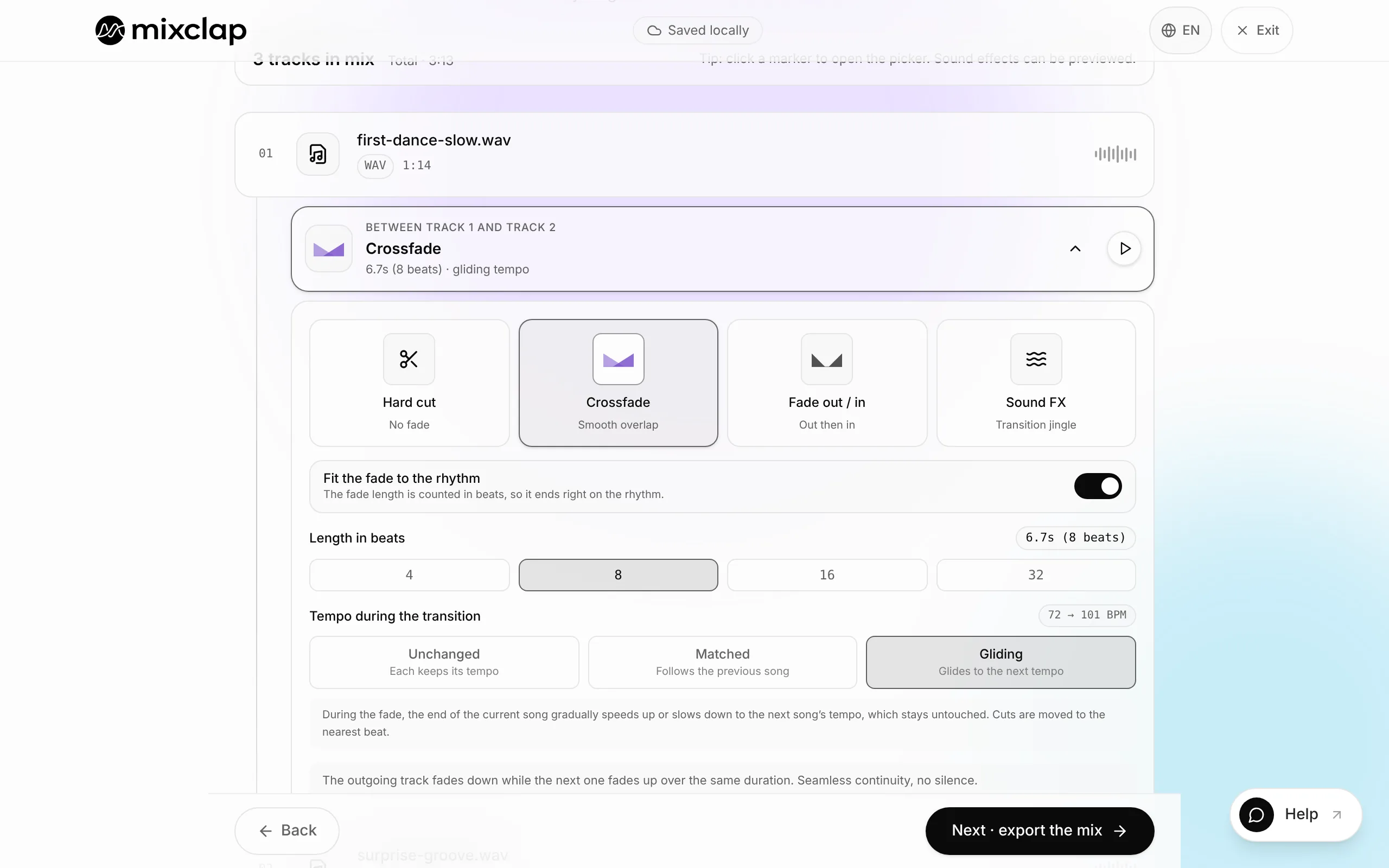
Step 4. Pick the transition at every join
Every join is a Crossfade by default. Click a join to choose Hard cut, Fade out / in, Sound FX or Pause, then Preview to hear it on its own. Keep Fit the fade to the rhythm on: the fade length is counted in beats and lands on the rhythm.
- 5
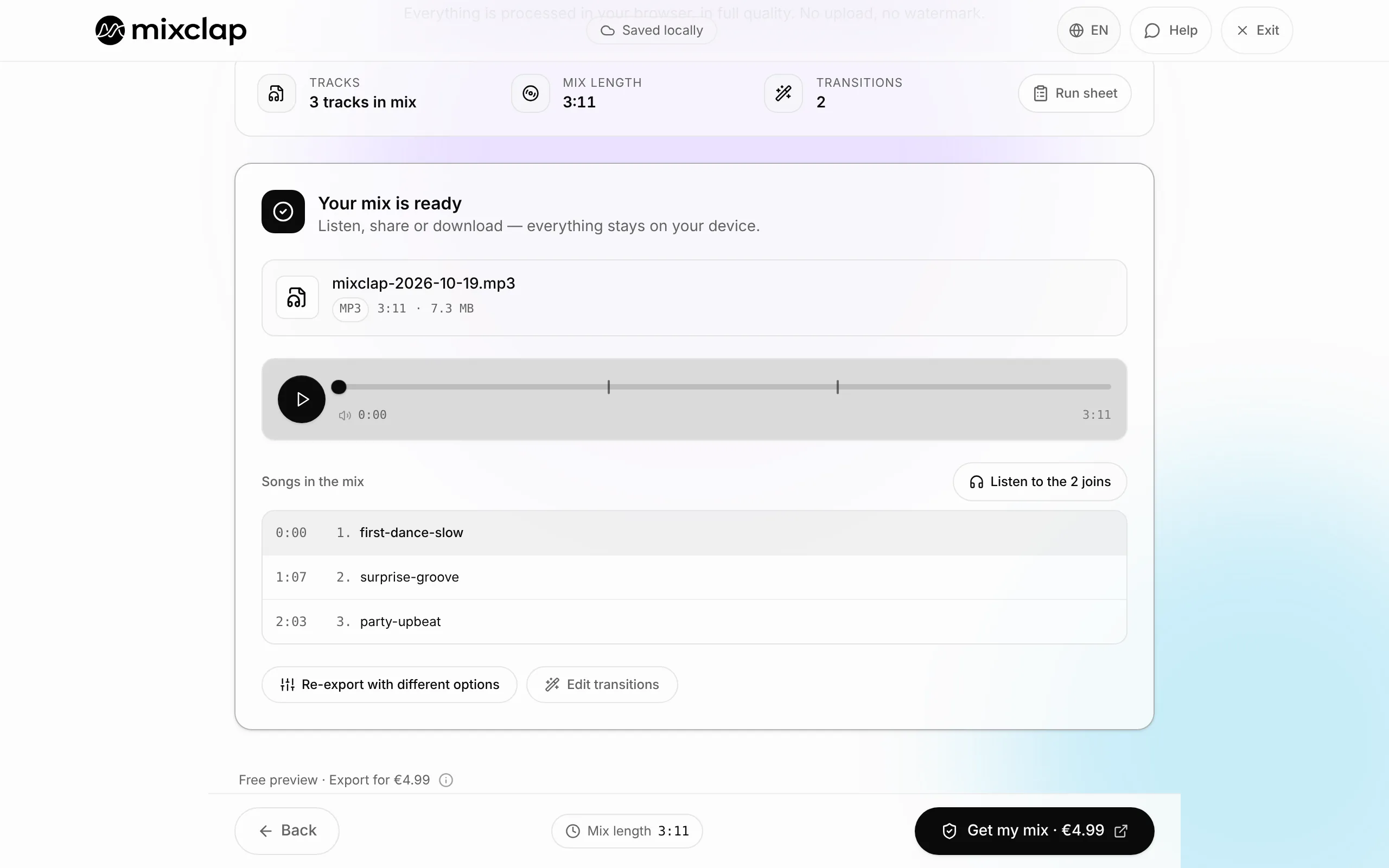
Step 5. Listen to the whole mix, for free
Click Next · export the mix: the mix builds itself in the browser in a few seconds. Listen to all of it, ideally while dancing to it. A join to fix? Edit the mix, your settings are kept.
- 6
Step 6. Download one file
Click Get my mix: a one-time payment of €4.99 through Stripe. You then pick the format when you download: MP3, which plays everywhere, or WAV and FLAC if a sound desk asks for them. You can also fine-tune this mix and export it again without paying again.
Which transition should I use?
Every join has its own transition: you can mix a clean cut and crossfades in the same mix.
| Transition | What you hear | Use it when |
|---|---|---|
| Crossfade | The next song rises while the first one fades away | Two similar tempos, the dance or the party carries on without a break |
| Hard cut | The next song starts straight away, no fade | A deliberate change of style, on a strong beat |
| Fade out / in | The first song fades to silence, then the next one comes in gently | Two very different moods |
| Sound FX | A sound effect marks the change: Vinyl scratch, Explosion or Air horn | Announcing a new section, show effect |
| Pause | A few seconds of silence | Between two acts of a show |
Two songs with different tempos
During a Crossfade, two rhythms that don’t line up sound like a stumble. In the join settings, the tempo can stay Unchanged, be Matched (the next song is sped up or slowed down to follow the previous one) or Gliding (it locks onto the previous song during the fade, then returns to its own tempo).
When the tempos are too far apart, MixClap keeps each song’s own tempo so it still sounds natural, and only lands the fade on the beat. In that case a Hard cut on a strong beat is often cleaner than a long fade.
Controlling the total length
The Where the fade goes setting decides how long the final mix is: Centred on the passage spreads the fade on both sides of the join, so the mix lasts exactly the sum of your selections; Whole selections keeps your selections whole at full volume and adds the fade length to the mix; Inside the selection takes the fade out of your selections and shortens the mix by that much.
At the export step, the Run sheet lists each song’s start time and the total length. If the mix must fit a required length, follow the guide to cut music to an exact length.
What MixClap does not do
So you can choose with your eyes open, here are the tool’s limits for this task.
- MixClap plays songs one after another: it doesn’t layer two pieces of music, or a voice over music. For that you need a multitrack editor such as Audacity.
- You need audio files on your device: MixClap can’t read Spotify, Apple Music, Deezer or YouTube, whose tracks are protected.
- It doesn’t supply music and gives you no rights to the songs you add. For a public event, licensing (PRS for Music in the UK, ASCAP/BMI in the US, Sacem in France) is still up to you or the venue.
- The download is paid (€4.99). To do everything for free, Audacity or AudioMass can do it too, but you make the cuts and fades by hand.
Common problems
A file won’t open
Check the format (MP3, WAV, M4A, FLAC, OGG, OPUS or MP4) and the size (200 MB at most). A protected file, such as a Spotify offline download or an old iTunes purchase in M4P format, can’t be read: you need an unprotected audio file.
One song is much louder than the others
Nothing to do: MixClap brings every song to the level of the loudest songs in the mix, and peaks stay under −1 dB, without distortion.
The join lands off the beat
Open the join, keep Fit the fade to the rhythm on and move the music in steps of 8 beats: the cut falls back on the start of a phrase. For a finer adjustment, switch to 1 beat.
I closed the tab before downloading
The project is saved in this browser, on this device: you’ll find it in My mixes. If an original file was moved, MixClap simply asks you to select it again; your trims and transitions are kept.
Frequently asked questions
How many songs can I put in one mix?
Up to 50 files of 200 MB each. Beyond about twenty songs, a computer is more comfortable and faster than a phone.
Do I need an account?
No. The project is saved in your browser. Only the payment, when you download, goes through Stripe, and the receipt arrives by email.
Are my songs uploaded to the internet?
Trimming, transitions, volume levelling and encoding run in your browser. To check the quality of mixes, MixClap keeps a private copy of your songs for 30 days at most.
Can I edit the mix after paying for it?
Yes: adjust the trims and transitions and export again for free. Adding, removing or replacing a song counts as a new mix.
Which file format should I choose?
MP3 plays everywhere and is almost always enough. Choose WAV or FLAC if a sound desk or engineer asks for it: maximum quality, but larger files.
Going further
Try it on your own songs
Editing and listening are free, with no account: you only pay if you download.
Open the studio